Importing MIDI files and cutting data
Change MIDI Channel and instrument
Mute, Solo, volume of parts and renaming
Automating the muting and unmuting of parts
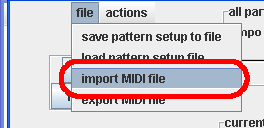
You can import a MIDI file into LEMu2. The "import MIDI" command is selected it from the "file" menu:
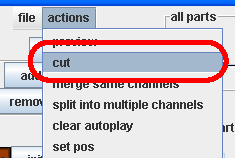
When you have imported a MIDI file, there may be little annoying things like it doesn't start on the right beat or whatever. You can trim the data using the "cut' command from "actions" menu:
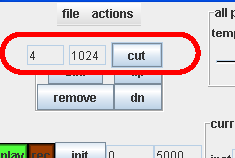
When this is clicked a popup apears where you can define the start (on the left) and end (right) beats for the trim/crop and then click the "cut" button to implement it. eg, I might want to start from the second bar, so I'll cut from 4 beats up to a very large number:
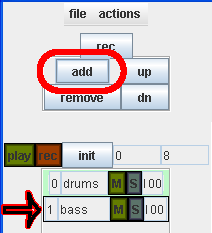
To create a new part, click on the add button. A new part will appear in the part list as shown by the red and black arrow below:

Scope controls the length of the loop. You can still edit notes that are beyond the length of the scope, but they won't play unless the scope is made longer. When you move scope, you can see how many beats it covers because the area of the note editor with lines and colouring changes accordingly.
Quantise controls the resolution of beats. If you specify the start time of notes at a small quantisation, eg 0.0, and then make it larger, eg 0.5, the onset of the notes will be shifted to points that are a ratio of 0.5 during playback. The original data is unchanged however, so when you reduce the resolution again to 0.0 the original note onsets that you put in will still be there.
Shuffle works by delaying notes on every second quantised beat. For example, if quantise is 0.25, a note at beat 0.0 or 0.5 would not be delayed, but a note at 0.25 and 0.75 would be. It is delayed by the amount specified by the shuffle control.
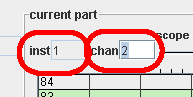
To change the MIDI channel and instrument that a part sends the notes to, either drag the relevant number up and down or double click the number and enter a new one:
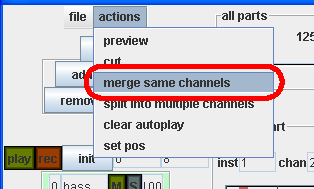
Two different parts can have the same channel, although for the purposes of morphing, it is recommended to merge parts with the same MIDI channel together, so that the MIDI channel's volume interpolation is consistent. You can do this easiliy using the "merge same channels" function from the "actions" menu:
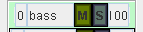
On each part in the part list is a control for muting and soloing the part. Once you have clicked mute for one part, muting will have the keyboard focus, so that you can control any of the mutes for any of the parts using the keyboard keys: `, 1, 2, 3 etc. through to 0 (for parts 0 through to 10) and q, ..., y (11 - 16).
Volume:click and drag the number on the right-hand side, or double click and type to enter the volume information. If your synth wasn't turned on before the pattern started playing, the volume may not have been sent, so you might need to jiggle it to resend the volume information.
You can rename the part by double clicking on the text that is the title.
You can build a song by recording the actions of muting an unmuting different parts.
1. Make sure the play and record boxes are unselected. They should be dull like this:

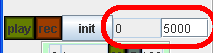
2. then change the length of the automation loop to make it long enough for the whole song you are going to record. 5000 beats is pretty safe:
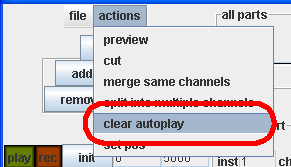
3. from the actions menu, do "clear auto play" to erase any previously recorded actions:
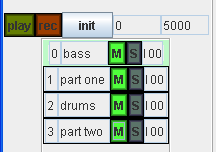
4. then set up the mutes how you want them for the beginning of the song. Usually this means muting them all (which you can do with the keyboard as shown above):
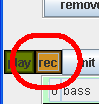
5. Then enable record by pressing the red box so that it is highlighted:
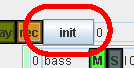
6. Then press "init" to reset the beat to count from 0. (if, instead, you record from wherever, say beat 50, it will take a long to get to the start of what you have recorded when you play it back!)
7. Now it will start playing from 0 and you can record a sequence of muting and unmuting. If you want to start again, follow step 3-7 again, but make sure to disable the record button before you re-mute the parts in step 4.
8. If you have finished recording the mute automation, disable record, and enable play:

9. Now click the "init" button again to play the automation that you recorded from the beginning.
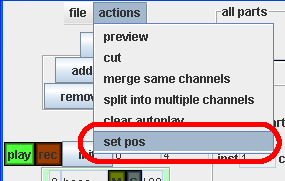
10. If you want to hear it from a certain beat, you can change the lbeat position to anything by using the "set pos" command from the "actions" menu:
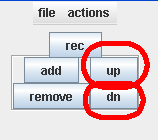
You can move the part up and down in the list using the up and down buttons:
This changes the "morph-channel" of the part. The morph-channel is shown on the left had side of each part:
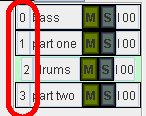
Parts in the current pattern will morph into the parts that are on the same morph channel in the pattern being morphed to. If one part in a pattern is on morph-channel 0 and another part in a different pattern is also on morph channel 0 and the patterns are connected by a morph, the two parts will be morphed together, regardless of differences in their MIDI channel and/or instrument.
Note: it is not a good idea to morph parts that have the same MIDI channel but different instruments because tons of program change messages will need to be processed and MIDI was not designed for that.
The morph algorithm for each morph channel can be specified separately within the different tabs of the morph editor. To find out more goto Morph Editor - Advanced
Please direct qestions and comments to Rene Wooller r.wooller@qut.edu.au